UXPin vs Sketch: Feature Breakdown & Pricing Comparison
Compare a code-first, browser-based prototyping workflow with a Mac-focused visual editor to weigh features, collaboration, and cost.
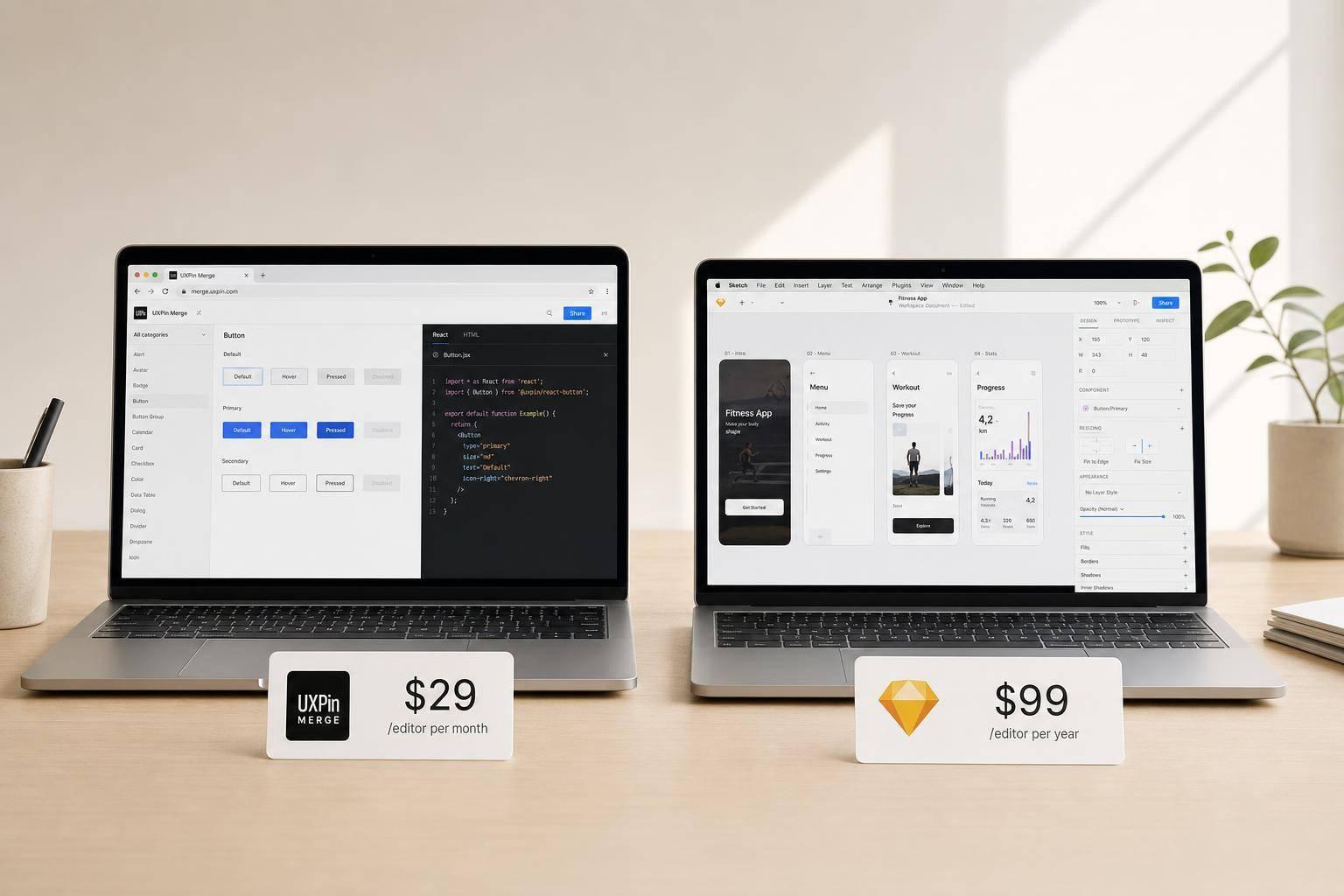
If I had to sum it up fast: UXPin is for teams that want code-linked prototyping and browser-based teamwork, while Sketch is for Mac users who want lower-cost visual design and offline editing.
Here’s the short answer:
- UXPin starts at $29/editor/month
- Sketch starts at about $12/editor/month
- UXPin works in the browser on Windows, Mac, and Linux
- Sketch editing is Mac-only
- UXPin supports logic, variables, and code-based components
- Sketch keeps prototyping simpler
- UXPin includes built-in AI
- Sketch relies more on plugins and outside tools for extra workflow needs
If you need prototypes that track state, react to user input, and stay closer to shipped components, UXPin has the stronger setup. If you mainly design on a Mac and want a lower monthly cost with offline access, Sketch is the simpler pick.
The main trade-off is clear: UXPin costs more but covers more of the design-to-dev flow, while Sketch costs less but leaves more work for handoff and code rebuilds.
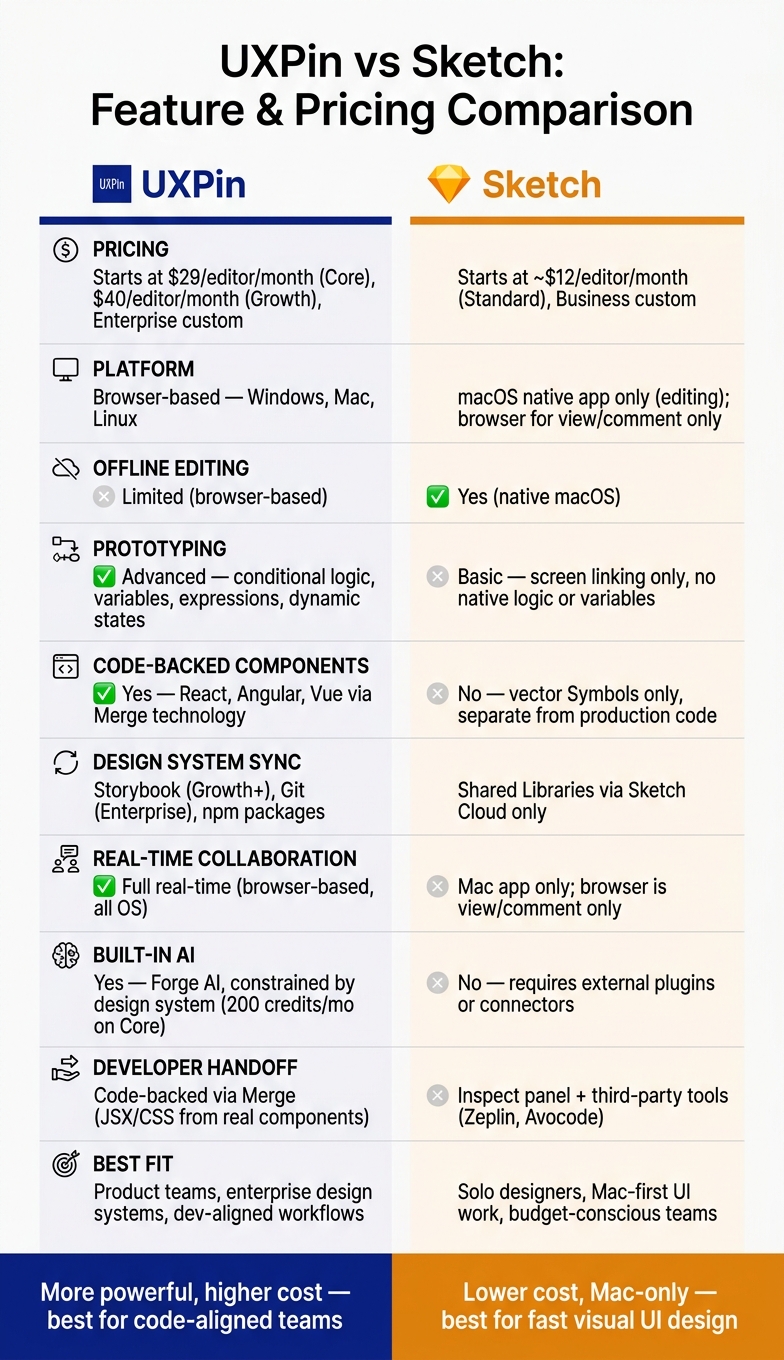
UXPin vs Sketch: Feature & Pricing Comparison at a Glance
Quick Comparison
| Criteria | UXPin | Sketch |
|---|---|---|
| Starting price | $29/editor/month | About $12/editor/month |
| Platform | Browser-based | macOS app |
| Editing on Windows/Linux | Yes | No |
| Offline editing | Limited | Yes |
| Advanced prototyping features | Yes | Basic |
| Variables and logic | Yes | No |
| Code-backed components | Yes | No |
| Storybook support | Yes on Growth+ | No |
| Git sync | Yes on Enterprise | No |
| Built-in AI | Yes | No |
| Best fit | Product teams, design systems, dev-aligned work | Solo designers, Mac-first UI work |
So if you’re choosing between the two, I’d look at three things first: your team’s operating systems, how close design needs to stay to code, and whether $29 vs. $12 per editor each month changes the decision.
sbb-itb-f6354c6
UXPin vs Sketch: Core Feature Comparison
UXPin and Sketch take pretty different paths when it comes to prototyping, design systems, teamwork, and handoff. That gap matters. It shapes how lifelike your prototypes feel, how well your system stays in sync, and how easily designers and developers can work together.
Prototyping Depth and Interaction Logic
UXPin goes far beyond simple click-through prototypes. It supports conditional logic, variables, expressions, and dynamic state management across screens. In plain English, that means a prototype can react to what a user does, change direction based on conditions, and keep track of state without forcing you to duplicate screen after screen.
Sketch is much simpler here. It handles prototyping with basic screen linking, which is fine for straightforward flows. But it doesn’t support variables or conditional logic natively. If you need richer behavior, that gap shows up fast.
| Feature | UXPin | Sketch |
|---|---|---|
| Conditional logic | Supported | Not built-in |
| Variables & expressions | Supported | Not supported natively |
| Component states | State changes | Basic symbol overrides |
| Data integration | JSON/CSV and live API data | Static overrides only |
Design Systems, Components, and Governance
UXPin leans hard into system control. Its Merge technology lets designers pull real production components straight into the canvas. That keeps prototypes much closer to what developers are already using in production, which can cut down friction during design handoff. UXPin also includes patterns, roles, permissions, and Component Manager controls for larger teams.
Sketch uses Symbols and Shared Libraries. That setup feels natural for many visual designers and does a solid job of keeping work consistent. But it stays separate from production code and doesn’t sync directly with Git or npm packages. So while the design side may stay organized, the design-to-code gap is still there.
| Feature | UXPin | Sketch |
|---|---|---|
| Component model | Code-backed via Merge | Symbols and shared libraries |
| Design system sync | Direct sync with Storybook, Git, and npm | Shared Libraries via Sketch Cloud |
| Governance controls | Roles, permissions, Component Manager | Workspace-level library permissions |
| Offline capability | Limited | Yes (offline by default) |
Collaboration, Developer Handoff, and Platform Limits
This is one of the clearest splits between the two tools.
UXPin runs in the browser and supports real-time collaboration across Windows, Mac, and Linux. Sketch requires macOS 14.0 or later for editing, while people on other systems can only view, inspect, and comment in the browser. That Mac-only editing model limits who can jump in and make changes. A browser-based editor keeps more of the team in the same place.
Handoff works differently too. With UXPin’s Merge-based setup, the design is already built from production components, so developers are looking at the same building blocks used in code. Sketch depends on Sketch Cloud or third-party tools like Zeplin for detailed spec handoff. If your team wants a code-backed workflow, those limits can become hard to ignore.
| Feature | UXPin | Sketch |
|---|---|---|
| Platform support | Browser-based (Windows, Mac, Linux) | macOS native editor; browser for review |
| Real-time collaboration | Full (browser-based) | Mac app only; browser is view/comment only |
| Handoff style | Code-backed via Merge | Inspect panel + third-party tools |
| Learning curve | Steep (technical mindset required) | Medium (designer-friendly) |
Code-Backed Workflows, AI, and Integrations
How UXPin Merge Changes the Design-to-Development Flow
Handoff is only part of the story. The bigger issue is whether the design stays connected to the code the team ships.
UXPin Merge lets teams design with production React, Angular, or Vue components right on the canvas. That includes props, states, and interaction logic. So instead of drawing something that looks right and hoping it gets rebuilt the same way, teams work with the same building blocks used in production.
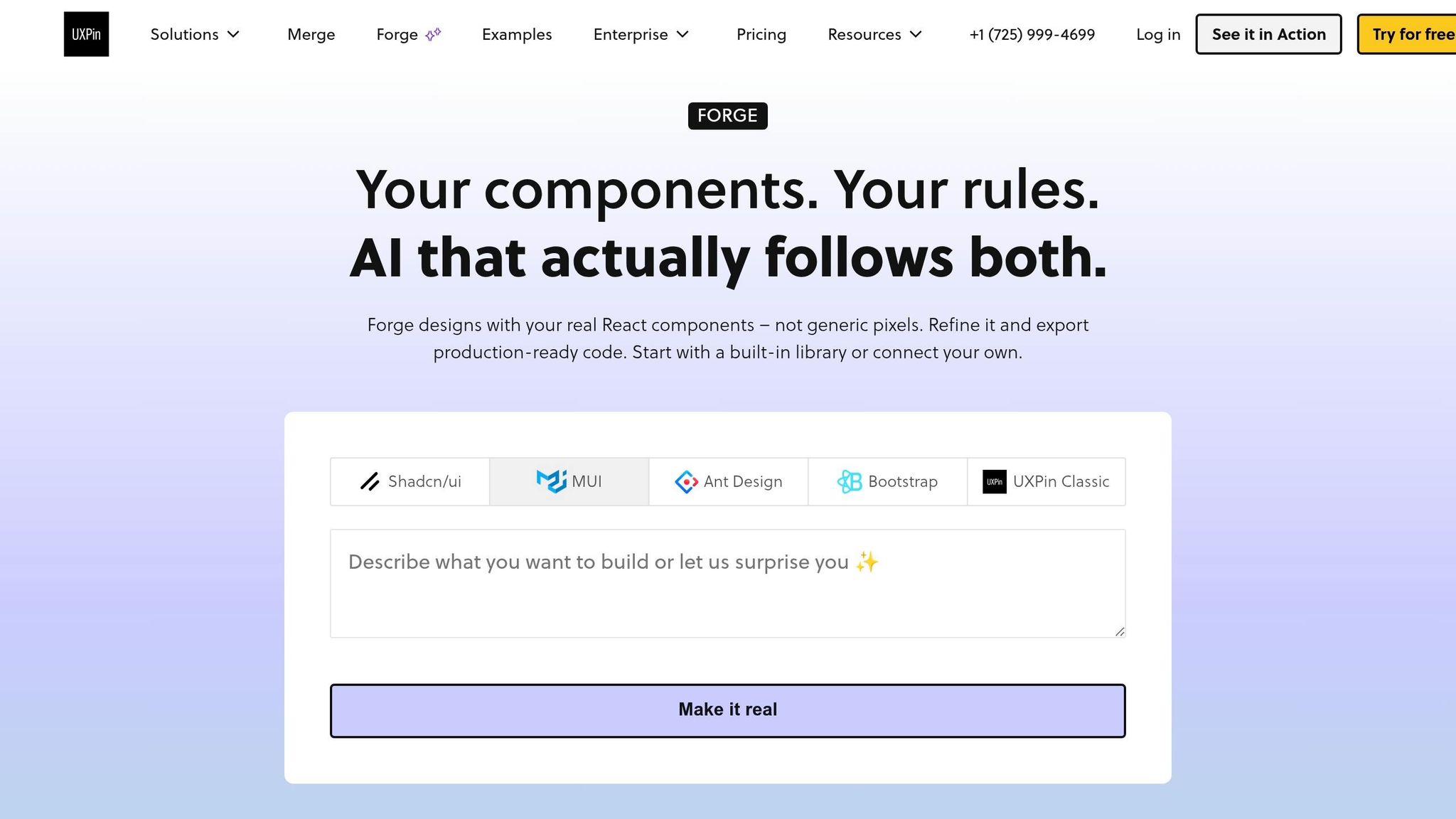
UXPin also comes with built-in libraries like MUI, Ant Design, Bootstrap, and ShadCN. If a team has its own component library, it can connect that library through Git or Storybook. That cuts down on handoff friction because developers aren’t rebuilding from a disconnected mockup. They’re working from the same components already used in code.
Sketch follows a more standard design-file approach. Its Symbols can look very close to the final UI, but they’re still vector-based and separate from production code. That means developers still need to interpret the design and rebuild the interface during handoff.
Forge AI Inside UXPin vs Traditional Vector Workflows in Sketch
AI is most useful when it works inside the same setup your team already uses.
Forge is built into UXPin, so designers can generate UI from inside the canvas without jumping to another tool. It creates layouts with components from the team’s approved design system. That helps keep the output consistent and closer to something a team can ship.
Sketch doesn’t have a native prompt-to-UI flow. In most cases, AI-assisted work depends on external plugins or external connectors. That adds extra manual steps and gives teams less built-in control over what gets generated.
Put simply, Forge keeps early design work inside the design system. Sketch’s AI flow is more manual and gives teams less control.
Storybook, Git, and Other Integration Considerations
UXPin’s integration depth changes by plan: Storybook is available on Growth, and Git is available on Enterprise. With Storybook connected, designers can work from components the engineering team has already documented and approved. That helps teams avoid stale UI patterns.
Sketch leans on Sketch Cloud for browser-based sharing and inspection, along with third-party tools like Zeplin or Avocode for developer specs. That setup can get the job done, but developers still have to turn visual specs into code instead of working from code-backed components.
| Integration | UXPin | Sketch |
|---|---|---|
| Storybook | Available on Growth and above | Not available |
| Git sync | Available on Enterprise | Not available |
| Developer handoff | JSX/CSS from code-backed components | Inspect mode + Zeplin/Avocode |
| AI generation | Forge, constrained by the design system | External plugins or external connectors |
Pricing Comparison: UXPin vs Sketch by Plan
Once the feature gaps are out in the open, pricing starts to tell a pretty clear story: each tool is built for a different kind of workflow.
UXPin Plans and What Each Tier Includes
UXPin’s current pricing has three paid tiers: Core, Growth, and Enterprise. All paid plans are Merge-enabled.
The Core plan starts at $29 per editor/month. It includes unlimited prototypes, conditional logic, variables and expressions, coded libraries, 200 AI credits per month, and 7-day version history.
The Growth plan starts at $40 per editor/month. It adds Design Systems, Patterns, Roles & Permissions, Storybook, SSO, 2FA, 500 AI credits, and 30-day version history.
Enterprise pricing is custom. It includes everything in Growth, plus custom library AI integration, Git integration, dedicated support and onboarding, security review, a dedicated Slack channel, and unlimited version history. Visit uxpin.com/pricing for details.
Sketch Plans and Feature Trade-Offs
Sketch keeps pricing simpler.
The Standard plan is about $12 per editor/month. It includes the native macOS app, Symbols, offline editing, and Sketch Cloud for handoff.
The Business tier uses custom pricing. It adds admin controls, SSO options, priority support, and a dedicated success manager. Teams often add third-party handoff tools.
| Plan | UXPin | Sketch |
|---|---|---|
| Entry tier | Core – $29/editor/mo | Standard – about $12/editor/mo |
| Mid tier | Growth – $40/editor/mo | - |
| Enterprise/Business | Custom pricing | Custom pricing |
| Offline support | No (browser-based) | Yes (native macOS) |
| Real-time collaboration | Yes | No; browser review/comment only |
| SSO & 2FA | Growth and above | Business tier |
| Storybook integration | Growth and above | Not built in |
| Git integration | Enterprise | Not built in |
| AI generation | Built in (Forge) | Not built in |
Cost vs Value for Individuals, Teams, and Enterprise Orgs
The better pick has less to do with the sticker price and more to do with how tightly your team wants design and code to stay in sync.
Sketch is easier on the budget, especially for solo Mac users. If you want a native app, offline work, and a lower monthly cost, it makes a lot of sense.
UXPin costs more, but it also does more inside the product. For teams that need conditional logic, variables, design systems, Storybook, or Git-based workflows, that extra spend can replace other tools and cut back on handoff friction.
| Team Type | Better Fit | Why |
|---|---|---|
| Solo freelancer (Mac) | Sketch | Lower cost, native performance, offline reliability |
| Small product squad | UXPin Core or Growth | Conditional logic, variables, and design-system support reduce the need for separate prototyping tools |
| Enterprise org | UXPin Growth or Enterprise | Code-backed components and Git integration help reduce design drift and engineering rework |
Which Tool Fits Your Workflow
Best Fit for enterprise design systems and Code Alignment
Once the feature gaps are clear, workflow usually gives you the answer fastest.
If your team ships React, Angular, or Vue components, UXPin keeps design and production in sync because designers can work with the same components developers ship.
That makes the biggest difference for enterprise teams running design systems across multiple products. UXPin’s version control, approval workflows, and Forge AI make it the stronger pick when consistency and code alignment matter most.
Best Fit for Fast UI Design and Mac-Centered Workflows
For teams that don’t live inside enterprise code workflows, this choice usually comes down to speed and platform preference.
Sketch is a better fit when the main goal is fast, high-fidelity visual UI design on a Mac. Its native macOS app is built for fast visual design and offline work.
The trade-off is that prototyping and handoff are more basic, and they depend on Sketch Cloud or third-party tools.
Final Takeaways
UXPin fits teams that need code-aligned design systems and more advanced prototyping. Sketch fits Mac-first teams that want fast UI design and offline editing.
FAQs
Which option is better for developers?
UXPin is the better pick for developers who need high-fidelity prototypes that are close to production.
With Merge, designers can use the same React components kept in Git, Storybook, or npm. That means prototypes line up with the final product’s props, states, and logic. In plain English, what designers build is much closer to what developers ship, which cuts down on miscommunication and reduces handoff meetings.
Can I use UXPin or Sketch without a Mac?
Not quite. Sketch needs a Mac with macOS 14.0 or later if you want to edit files. On Windows or Linux, you can only use the web app to view designs, leave comments, inspect files, and download assets.
UXPin runs in the browser, so it doesn’t have that device limit.
When is UXPin worth the higher price?
UXPin is worth the higher price if your team needs a tighter link between design and production code. That can cut down on manual handoff work and help avoid rework later.
It makes the most sense for enterprise teams with mature design systems built in React, Angular, or Vue. Merge lets designers prototype with the same production-ready components developers already use. That helps keep one source of truth, maintain strong design fidelity, and support advanced interactivity, conditional logic, and variables.